 Easy BACnet
How do I read BACnet values from a phone?
Updated 11 October 2026
Get your phone onto the controls network, open Easy BACnet, tap Scan for Devices, then open the device and the point you want. Its live Present Value, Units and Status are shown, with a Refresh button for a fresh read. Reading changes nothing on the equipment, so it is safe on a live system. Once the phone is on the right subnet the whole thing takes a minute or two.
What you need
- Your phone on the controls network. Usually that means a USB-C Ethernet adapter plugged into the controls switch (in a JACE or supervisory panel, or the BAS VLAN), with a static IP in the controls range or DHCP if that VLAN has it. A few sites have a controls Wi-Fi network. Guest Wi-Fi or mobile data reaches nothing. See why can't I find my BACnet IP devices? and the subnet guide if the scan is empty.
- No login. BACnet IP reads do not need a password. If the phone is on the right subnet and nothing is filtering UDP 47808, the controllers will answer.
Step 1 — Scan for devices
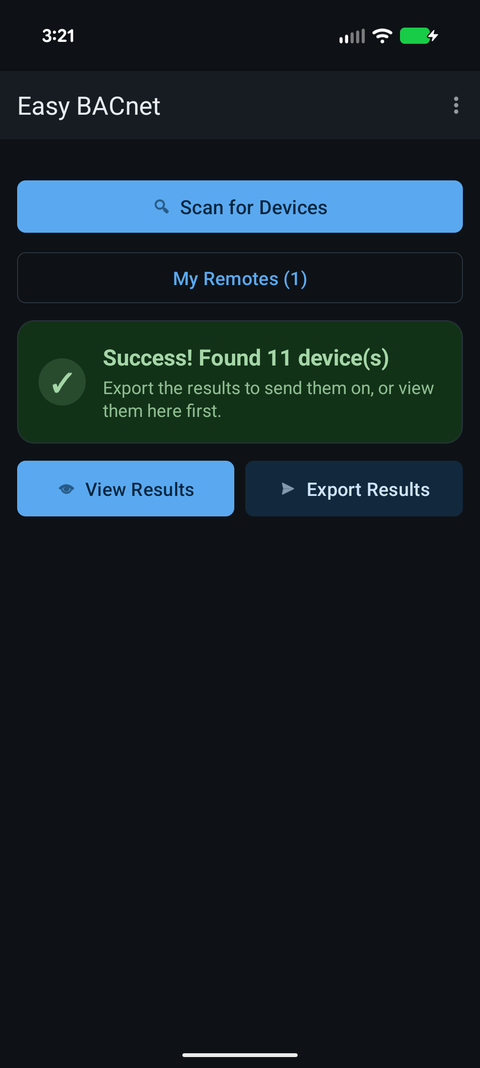
Open the app, tap the Easy BACnet Mode card, then Scan for Devices. The app finds every BACnet IP device on your network, then reads each one's name. It can take up to a minute; it keeps asking through the scan in case a reply gets lost, and a counter shows devices as they answer.
Step 2 — Open the device
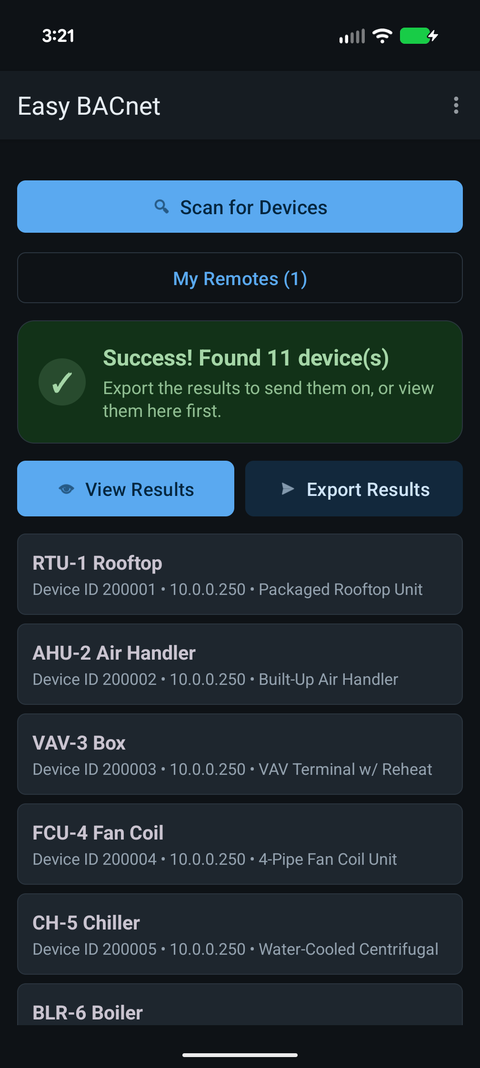
Tap View Results. Each device shows its name, Device ID and IP address (devices behind a BACnet router show the router's IP). Tap one and the app reads its object list. It reads one entry at a time, which works on small controllers that cannot send the whole list in one reply, but a large controller takes a little while.
Step 3 — Find the point
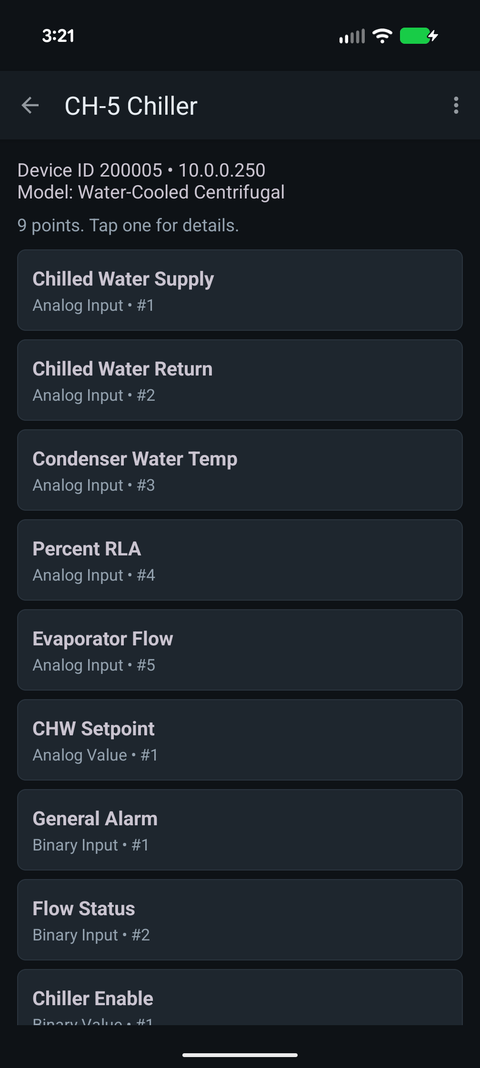
The device opens to its list of points: analog inputs, binary outputs, setpoints and
so on. Names come from each object's Object_Name, so a well-commissioned
controller shows names like RTU-3 SA-T and a factory-fresh one shows
AI-3. On a very large controller only the first 2,000 objects load; if you
know the object you want, menu → Add object by number reads it
directly. For what the object types mean, see
BACnet object types explained.
Step 4 — Read the value
Tap the point. You get its Present Value, the Units the controller reports, the Status flags (in alarm, fault, overridden, out of service) and the Description if the device has one. Refresh reads it again.
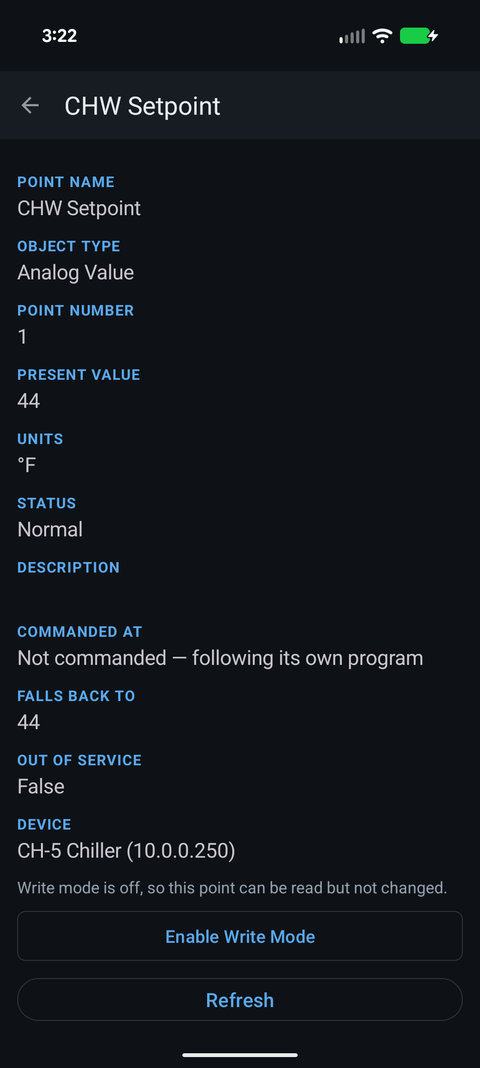
On a commandable point you also see Commanded At and Falls Back To: which priority is currently in control and with what value, and the Relinquish_Default it goes to when every priority is released. See BACnet priority and stuck overrides.
Reading is safe; writing is separate
Nothing above changes the equipment. Writing is a separate mode that is off every time the app starts. When you need it, see how to write to a BACnet point.
Getting every value at once
If you need more than a few points, Export Results reads every point on every device found and builds an Excel spreadsheet you can email or save, with names, present values, units and status. The full walkthrough is in how to use Easy BACnet.
Check it on your own network. Easy BACnet is a free Android app that finds BACnet IP devices and reads their points in a couple of taps.
Get it on Google Play