 Easy BACnet
How do I read BACnet values from a phone?
Updated 18 September 2026
Join your phone to the same network as the controls, open Easy BACnet, tap Scan for Devices, open the device you want and then the point you want, and its live Present Value, Units and Status are right there, with a Refresh button for a fresh read. Reading changes nothing on the equipment, so this is completely safe to do on a live system. The whole thing takes under a minute once the phone is on the right network — which is the one part worth getting right first.
What you need
- Your phone on the controls network. Join the building's controls Wi-Fi, or plug into the network with a USB-Ethernet adapter. A phone on guest Wi-Fi or mobile data reaches nothing — and that is the network, not the app. See why can't I find my BACnet devices? and the subnet guide if the scan is empty.
- No password. BACnet has no login. If you are on the network, the devices answer.
Step 1 — Scan for devices
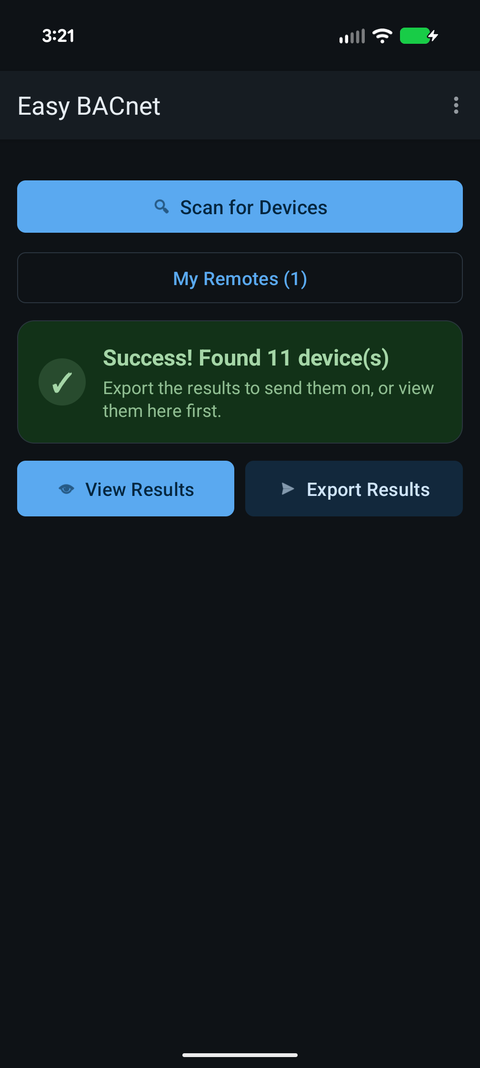
Open the app, tap the Easy BACnet card, then Scan for Devices. The app broadcasts a BACnet Who-Is and collects the replies for up to about forty-five seconds — access points drop broadcasts, so it keeps asking rather than trusting one shot. A counter shows devices as they answer.
Step 2 — Open the device
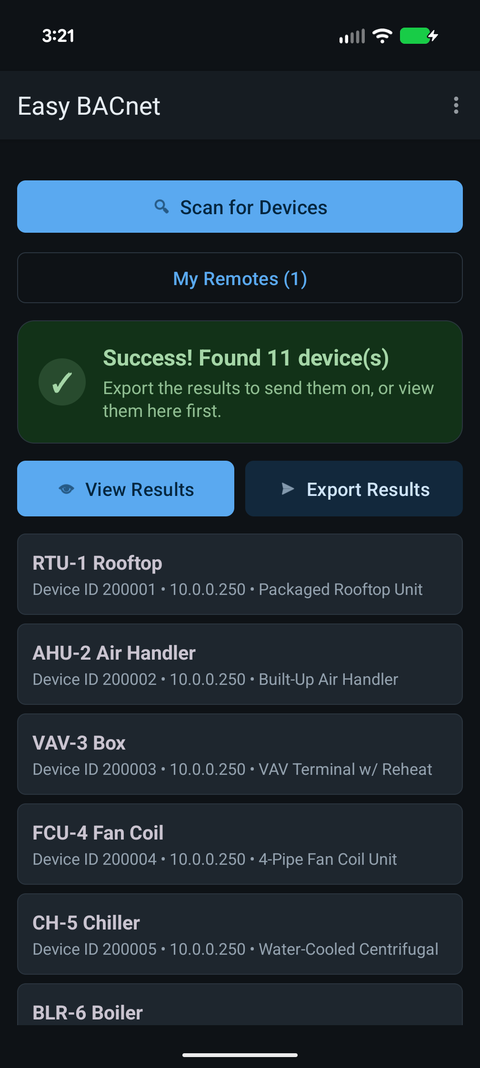
Tap View Results. Each device shows its name, Device ID and IP address. Tap the one you want and the app reads its object list — on a large controller this takes a moment, because it reads the points one at a time on purpose, which is the only approach that works with every controller ever made.
Step 3 — Find the point
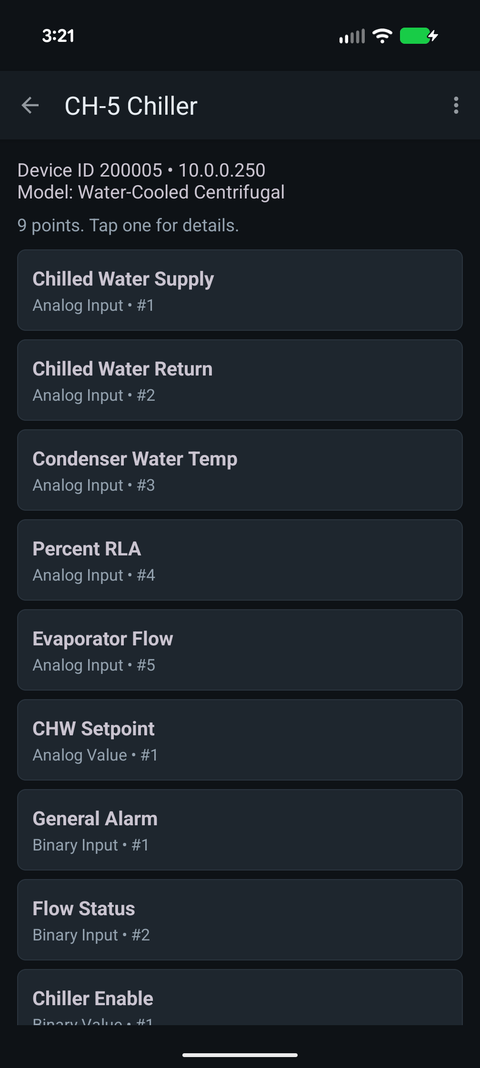
The device opens to its list of points — analog inputs, binary values,
setpoints and the rest. Names come from the controller's own
Object_Name, so a well-commissioned device reads like plain English and a
poorly-commissioned one reads like AI-3. If a big controller has
hundreds of points, use the search box. Not sure what the object types mean? See
BACnet object types explained.
Step 4 — Read the value
Tap the point. You get its live Present Value, the Units the controller reports, the Status flags (in alarm, in fault, overridden, out of service) and the Description if the device carries one. Refresh reads it again on demand.
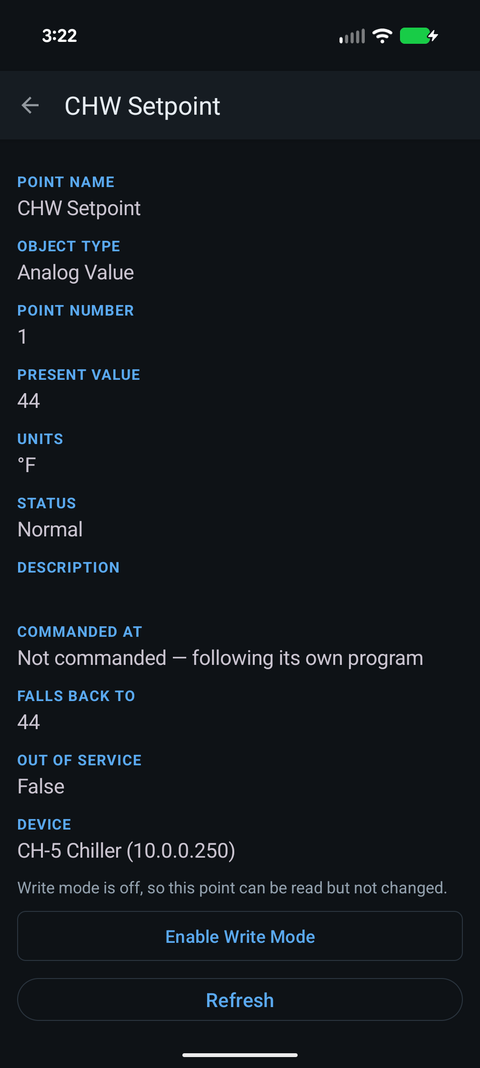
On a commandable point you also see Commanded At and Falls Back To — whether something is currently overriding the point and at what priority. That single screen answers “why is this damper stuck open?” more often than anything else in the app. See BACnet priority and stuck overrides.
Reading is safe; writing is separate
Everything above only reads — it cannot change a thing on the equipment, so a phone is a perfectly safe way to look around a live building. Changing a value is a deliberate, separate mode that is off every time you launch the app. When you do need it, see how to write to a BACnet point.
Turning a quick read into a record
If you need more than one value, skip tapping through points one by one: Export Results reads every point on every device and hands you a CSV by email — names, present values, units and status. A five-minute scan in a plant room turns an undocumented building into a points list somebody can use. The full walkthrough is in how to use Easy BACnet.